


TL;DR
Good eBay product research answers three questions with data: is there demand, how crowded is the supply, and what do items actually sell for.
- Terapeak Product Research is free for every seller inside Seller Hub, and it is where you should start
- The sold listings filter is the rawest data eBay shows publicly
- When dashboards cap out, you can pull sold and active listings into your own dataset with an AI scraping API and compute the ratios yourself; every snippet below ran live on July 24, 2026
Product research on eBay means checking what buyers actually pay before you list, not guessing. The workflow that works in 2026 has three layers: eBay's own research tools (Terapeak Product Research is free to all sellers, Sourcing Insights comes with a Store subscription), the public sold listings filter for raw evidence, and your own extracted dataset when you need numbers the dashboards do not compute. This guide walks all three, in that order, and finishes with a worked example that pulls live eBay data into a supply-and-demand table with a few dozen lines of Python.
One number to keep in mind while reading: at the time of writing, a search for mechanical keyboards showed 58,000+ active listings against roughly 12,000 sold in the recent window eBay exposes. Whether that ratio should scare you off or pull you in is exactly what research is for.
What eBay Product Research Actually Means
Every research tool, official or not, is trying to estimate four things for a product or niche:
| Question | Metric | Where it lives |
|---|---|---|
| Is there demand? | Search volume, sold count | Terapeak, Sourcing Insights, sold filter |
| How crowded is supply? | Active listings count | Search results, Sourcing Insights |
| What does it sell for? | Sold price distribution | Sold filter, Terapeak |
| How fast does it move? | Sell-through rate | Sourcing Insights, or compute it yourself |
The one worth internalizing is sell-through rate: sold items divided by active listings for the same query or category. High demand with thin supply is an opportunity. High demand buried under five times as much supply is a price war. eBay's own Sourcing Insights ranks categories by exactly this shape, flagging "Great Opportunity" where search volume is high and active listings are not:
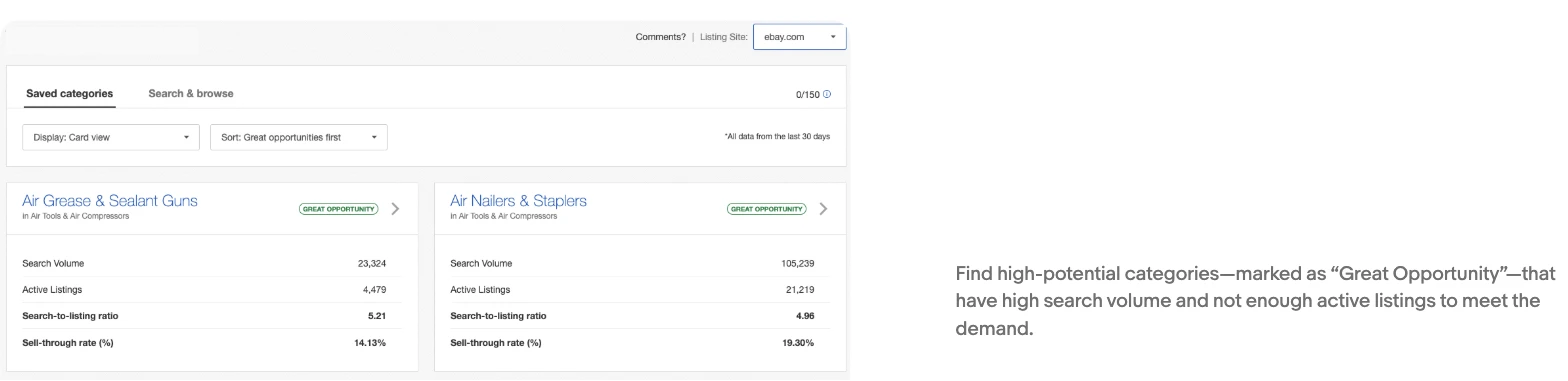
Those four numbers per category are the whole game. Everything below is about getting them at the granularity you need.
Start With Terapeak, Because It Is Free
Terapeak used to be a paid third-party product; eBay acquired it and folded it into Seller Hub. Today it is two tools under the Research tab:
Product Research shows recent price trends and real sales data for millions of items: what sold, at what price, through which format, with charts over time. You can filter by keyword, category, condition, and marketplace. Per eBay's Seller Center, it is free to every seller, no Store subscription needed. If you sell on eBay and have never opened the Research tab, do that before paying anyone for a research tool.
Sourcing Insights is the category-level view from the screenshot above: search volume, active listings, search-to-listing ratio, and sell-through rate per category, sortable by opportunity. This one requires a Basic or above Store subscription.
The strengths are obvious: official data, longer history than the public site shows, zero setup. The ceilings are just as real:
- It lives inside Seller Hub. There is no export automation or API, so anything you want to track over time means manual pulls.
- Queries are keyword and category shaped. Cohorts like "only listings from sellers with under 500 feedback" or "only auctions that got more than 5 bids" are not expressible.
- Sourcing Insights aggregates at category level. Niches inside a category disappear into the average.
The Sold Listings Filter: Raw Evidence, Zero Cost
Before any tool existed, sellers did research with one URL parameter, and it still works. Any eBay search can be filtered to sold and completed items:
https://www.ebay.com/sch/i.html?_nkw=mechanical+keyboard&LH_Sold=1&LH_Complete=1That page is the ground truth the dashboards summarize: real items, real final prices, real dates, roughly the last 90 days of them.
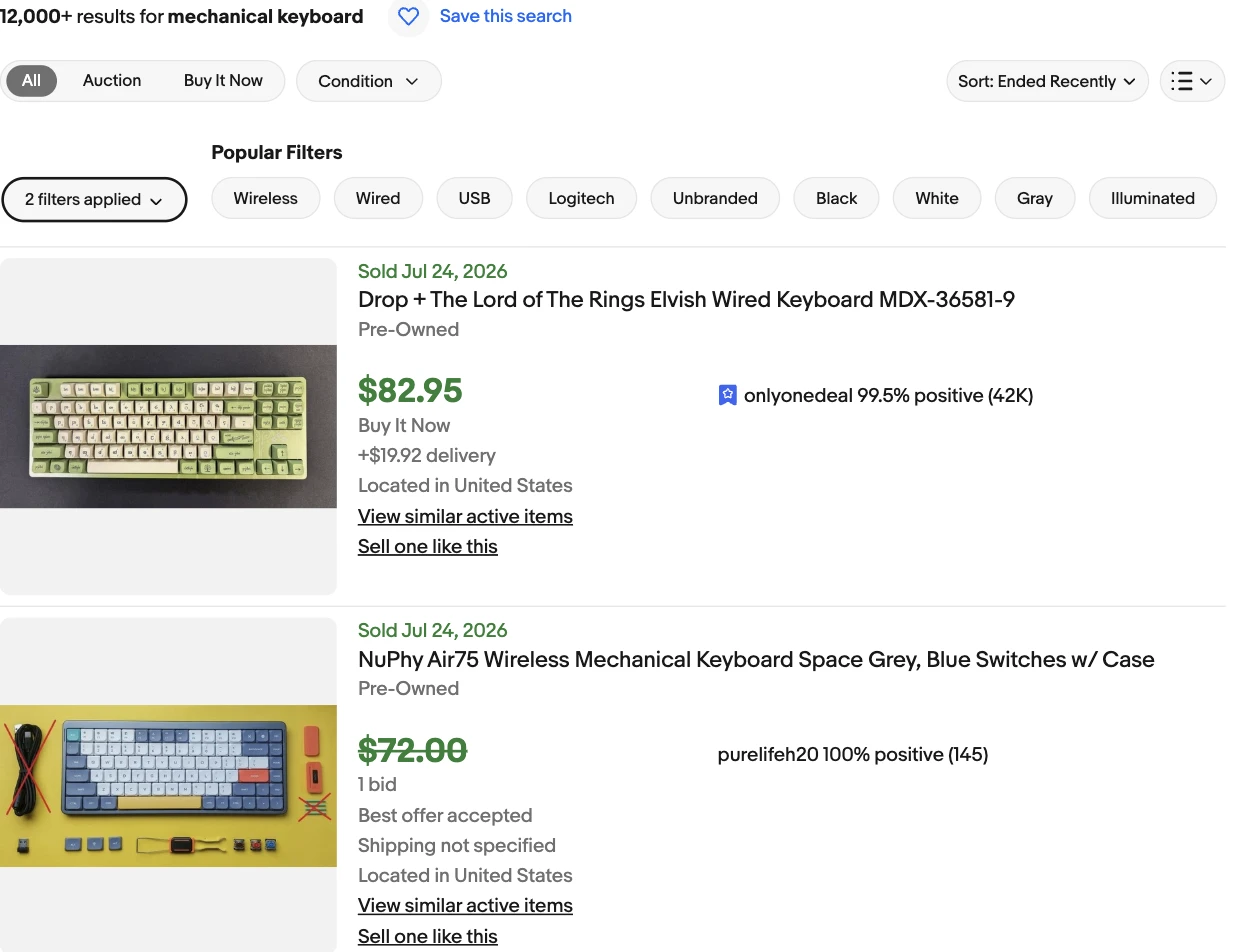
Reading a sold page beats reading a chart for one reason: you see the item specifics that moved. Which condition sold, whether Buy It Now beat auctions, which brands cleared at which price points. The workflow most sellers use is sold view first for the reality check, active view second to count who you would compete against today.
The limitation is scale. Eyeballing two pages works for one product idea. It stops working when you want to compare twenty niches, track a ratio weekly, or feed numbers into a spreadsheet. That is where the tools come back in, or where you build your own.
Third-Party eBay Research Tools
A short and honest take on the paid options, because the roundups that rank for this query list ten tools and describe none of them critically:
- ZIK Analytics is the best known dedicated eBay research suite: niche and competitor analysis, title building, and item-level sales history beyond what Terapeak's interface exposes. It is subscription software, and for dropshipping-style workflows it is popular for a reason.
- Algopix does cross-marketplace product analysis (eBay alongside Amazon and Walmart), useful when eBay is one channel of several.
- General scraping-based tools and browser extensions fill the gaps between these, usually around competitor watching.
The question worth asking before paying for any of them: which number do you need that Terapeak does not give you for free? If the answer is a specific cohort, a custom ratio, or automated tracking, a subscription dashboard often still cannot do it, because you are renting someone else's queries. That is the case for the last layer.
Build Your Own eBay Research Dataset
Everything above breaks the same way: fixed queries, no export, someone else's schema. The alternative is extracting the numbers straight from eBay's public search pages into your own table. This section does it live with the ScrapeGraphAI Python SDK, and it is honest about the part most tutorials skip: eBay is one of the harder mainstream sites to fetch.
A plain HTTP fetch of an eBay search page gets you a 403 error page. A standard headless browser gets the same. What worked in our tests is the stealth browser mode, and even then, sessions are slow enough that you should split fetching from extraction instead of doing both in one synchronous call. Fetch the page as markdown first, retry on failure, then run schema extraction on the markdown you already hold:
import json
import os
import time

from pydantic import BaseModel, Field
from scrapegraph_py import ScrapeGraphAI

STEALTH = {"mode": "js", "stealth": True, "wait": 2000, "country": "us"}

sgai = ScrapeGraphAI(api_key=os.environ["SGAI_API_KEY"])


def fetch_markdown(url: str, attempts: int = 3) -> str:
    """eBay serves 403 pages to plain fetchers; stealth sessions vary, so retry."""
    for attempt in range(1, attempts + 1):
        page = sgai.scrape(url=url, formats=[{"type": "markdown"}], fetch_config=STEALTH)
        if page.status == "success" and page.data is not None:
            md = page.data.results["markdown"]["data"][0]
            if "SORRY" not in md[:200] and len(md) > 2000:
                return md
        print(f"attempt {attempt} failed, retrying")
        time.sleep(10)
    raise RuntimeError(f"could not fetch {url}")
With the fetch problem contained, extraction is a schema and a prompt. Active listings first:
class Listing(BaseModel):
    title: str
    price: float
    currency: str
    condition: str


class ActiveSearch(BaseModel):
    total_results_text: str
    items: list[Listing] = Field(max_length=6)


ACTIVE_PROMPT = (
    "This is the markdown of an eBay search results page. Extract the total results count text "
    "shown above the listings, and the first visible organic listings: item title, price as a "
    "plain number (lower bound if a range is shown), currency as an ISO code, and the condition "
    "line such as Pre-Owned or Brand New. Skip ads, sponsored placements, and placeholder cards."
)

md = fetch_markdown("https://www.ebay.com/sch/i.html?_nkw=mechanical+keyboard")
res = sgai.extract(ACTIVE_PROMPT, markdown=md, schema=ActiveSearch.model_json_schema())
data = ActiveSearch(**res.data.json_data)
Real output from the run used for this article:
total: 58,000+ results for mechanical keyboard
- 32.99 USD | Pre-Owned | Inland MK PRO V2 Matcha RGB Gaming Mechanical Keyboard
- 88.0 USD  | Pre-Owned | gaming keyboard
- 99.0 USD  | Pre-Owned | CORSAIR K100 Air Wireless RGB Mechanical Gaming Keyboard
- 59.99 USD | Pre-Owned | Akko MOD 007 Multi-mode Blue On White Mechanical Gaming Keyboard
- 18.89 USD | Brand New | 60% Mechanical Gaming Keyboard RGB 68 Keys LED Backlit USB Wired
- 29.99 USD | Brand New | Lenovo (Lecoo) GK301 Wired Mechanical Gaming Keyboard USB wired
The sold side is the same function pointed at the filtered URL, with a schema that captures final prices and sold dates:
class SoldItem(BaseModel):
    title: str
    price: float
    currency: str
    sold_date: str
    condition: str


class SoldSearch(BaseModel):
    total_results_text: str
    items: list[SoldItem] = Field(max_length=8)


SOLD_PROMPT = (
    "This is the markdown of an eBay search results page filtered to sold and completed "
    "listings. Extract the total results count text, and for each visible sold listing the "
    "item title, final sold price as a plain number, currency as an ISO code, the sold date "
    "exactly as displayed, and the condition line. Skip ads and placeholder cards."
)

sold_url = "https://www.ebay.com/sch/i.html?_nkw=mechanical+keyboard&LH_Sold=1&LH_Complete=1"
sold_md = fetch_markdown(sold_url, attempts=5)
sold = sgai.extract(SOLD_PROMPT, markdown=sold_md, schema=SoldSearch.model_json_schema())
A transparency note from testing this article: eBay guards the sold view harder than the active one. During our test window the active page came back fine while stealth sessions against the sold URL kept timing out, which is why the fetch function above defaults to retries and why attempts=5 is not paranoia. Plan for the sold pull to be the slow, flaky step of the pipeline and cache every markdown capture you get; extraction can always be re-run on a saved page for free.
One Worked Example: Reading the Numbers
Put the two views together for the demo query and the research picture fits in one table:
| Metric | Value | Source |
|---|---|---|
| Active listings | 58,000+ | extracted above |
| Sold in the recent window | 12,000+ | sold view, screenshot earlier in this post |
| Sell-through proxy | roughly 0.2 | sold divided by active |
| Active price spread (first page) | $18.89 to $99.00 | extracted above |
| Sold examples | $82.95 (Drop LOTR), $72.00 (NuPhy Air75) | sold view |
Reading it like a seller: mechanical keyboards move real volume, but with active supply at nearly five times the recent sold count, a generic listing joins a very long queue. The sold examples tell the sharper story, because the items clearing at $70 to $85 are branded and distinctive boards, not the $19 generics crowding the low end of the active spread. If you were entering this niche, the data says compete on specificity, not price, or pick a narrower cohort entirely. Run the loop version of this code over twenty candidate niches and an afternoon ranks them all by that same logic.
Tracking Niches Over Time
A single snapshot answers "should I enter this niche today". The more valuable dataset is the same three numbers pulled weekly, because sell-through moving from 0.2 toward 0.5 while supply stays flat is the actual entry signal. The fetch-and-extract functions above drop straight into a scheduled job: loop your niche queries, append date, query, active count, sold count, and median sold price to a CSV, and alert on ratio changes. We walk that exact pattern, applied to price alerts, in the Amazon price monitoring guide, and the multi-store version in the price scraping guide.
If you would rather not run the loop yourself, the same extraction can run on a schedule through the monitor endpoint, which tracks a URL and reports changes over time. A free-tier key covers the whole pipeline while you are testing it.
When to Use What
- Selling casually, researching one idea: the sold listings filter and free Terapeak answer it in ten minutes.
- Running an eBay business inside common categories: Terapeak plus Sourcing Insights if you have a Store; add ZIK Analytics if competitor forensics pay for the subscription.
- Tracking custom niches, feeding a spreadsheet or model, or researching at scale: build the dataset yourself. The code above is the whole stack, and it stays yours.
For scraping eBay beyond search pages, item-level extraction with schemas is covered in our eBay scraper tutorial, and the scraper tools themselves in 7 Best eBay Scraper.
FAQ
How do I do product research on eBay for free?
Two ways, both official: the sold listings filter on any search (add LH_Sold=1 and LH_Complete=1 to the URL) shows real final prices from roughly the last 90 days, and Terapeak Product Research under the Research tab in Seller Hub is free to all sellers and adds price trends and longer history.
What is Terapeak?
Terapeak is eBay's own research toolset inside Seller Hub, originally an independent company eBay acquired. Product Research (free for sellers) shows sales history and price trends by keyword or category; Sourcing Insights (requires a Basic or above Store subscription) ranks categories by demand, supply, and sell-through rate.
What is a good sell-through rate on eBay?
There is no universal threshold, but the ratio of sold items to active listings is the comparison that matters: a niche where monthly sold count approaches or exceeds current supply clears fast, while one with many times more active listings than sales is saturated. eBay's Sourcing Insights flags high-search, low-supply categories as opportunities using exactly this shape.
Is scraping eBay for research allowed?
eBay's terms of service restrict automated access, like most marketplaces, so automated pulls are your own call; the listings data itself is public information. Extract only public pages at low volume for your own analysis, and read our web scraping legality guide for the fuller picture.