


TL;DR
Connect Google's Gemini CLI to ScrapeGraphAI's hosted MCP server in two minutes. JSON config, native HTTP support, no proxy binary needed.
- What you need:
geminion your PATH and a ScrapeGraphAI API key. - Where to edit:
~/.gemini/settings.jsonfor global scope, or.gemini/settings.jsoninside a project. - What you get: scraping tools Gemini picks automatically based on your prompt, with structured output piped straight into the code or analysis it produces.
Gemini CLI is fast and free in a generous tier, but it can't see the live web from inside your terminal. Ask it about today's competitor pricing or fresh API docs and you'll get a refusal or a stale guess from training data.
This guide fixes that. You'll connect Gemini CLI to ScrapeGraphAI's hosted MCP server using its native Streamable HTTP support. No proxy binary, no SDK, just JSON.
What you need
| Requirement | Where to get it |
|---|---|
Gemini CLI (gemini on your PATH) |
geminicli.com |
| A ScrapeGraphAI API key | scrapegraphai.com/dashboard |
| Node.js 18+ | Required by Gemini CLI itself |
That's it. Gemini CLI speaks HTTP MCP directly, so there's no mcp-remote proxy hack like Claude Desktop requires.
Step 1: Grab your API key
Sign in at scrapegraphai.com/dashboard and copy the key from the API Keys section. Treat it like a password. Anyone holding it can spend your credits.
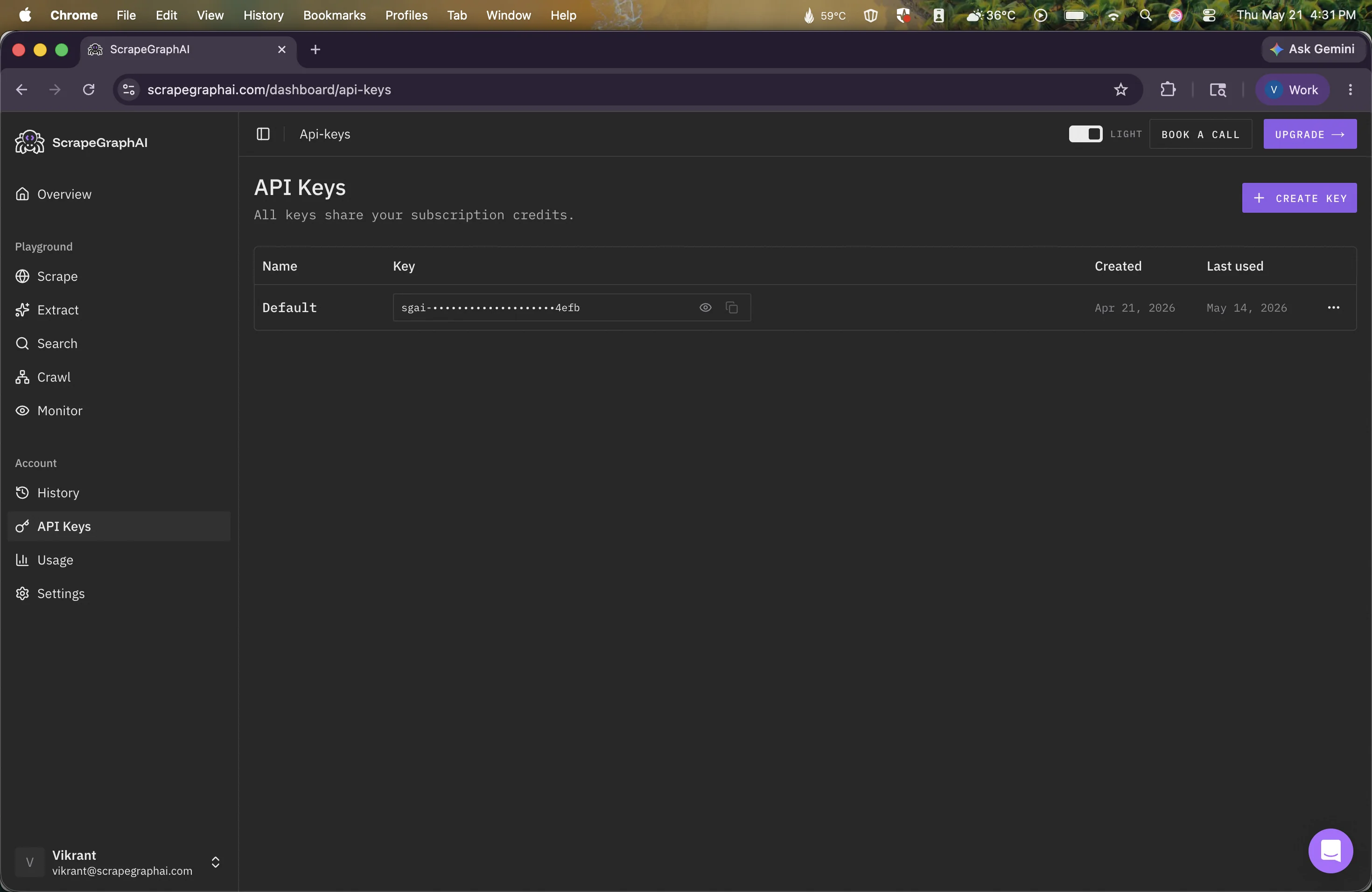
New accounts ship with enough free credits to follow this guide and run a dozen scrapes after.
Step 2: Open your Gemini settings
Gemini CLI reads MCP servers from a JSON settings file. Two locations work:
| Scope | Path |
|---|---|
| Global (all projects) | ~/.gemini/settings.json |
| Project-local | .gemini/settings.json |
Global is the right call unless you have a real reason to scope this to one repo. Open it in your editor, creating it if it doesn't exist:
mkdir -p ~/.gemini && open -t ~/.gemini/settings.jsonStep 3: Add the ScrapeGraphAI MCP server
Paste this block into the file. If you already have other settings, add mcpServers as a top-level key, or merge the scrapegraph entry into your existing mcpServers object.
{
  "mcpServers": {
    "scrapegraph": {
      "httpUrl": "https://mcp.scrapegraphai.com/mcp",
      "headers": {
        "X-API-Key": "YOUR_API_KEY"
      }
    }
  }
}
Replace YOUR_API_KEY with the key from Step 1. Done.
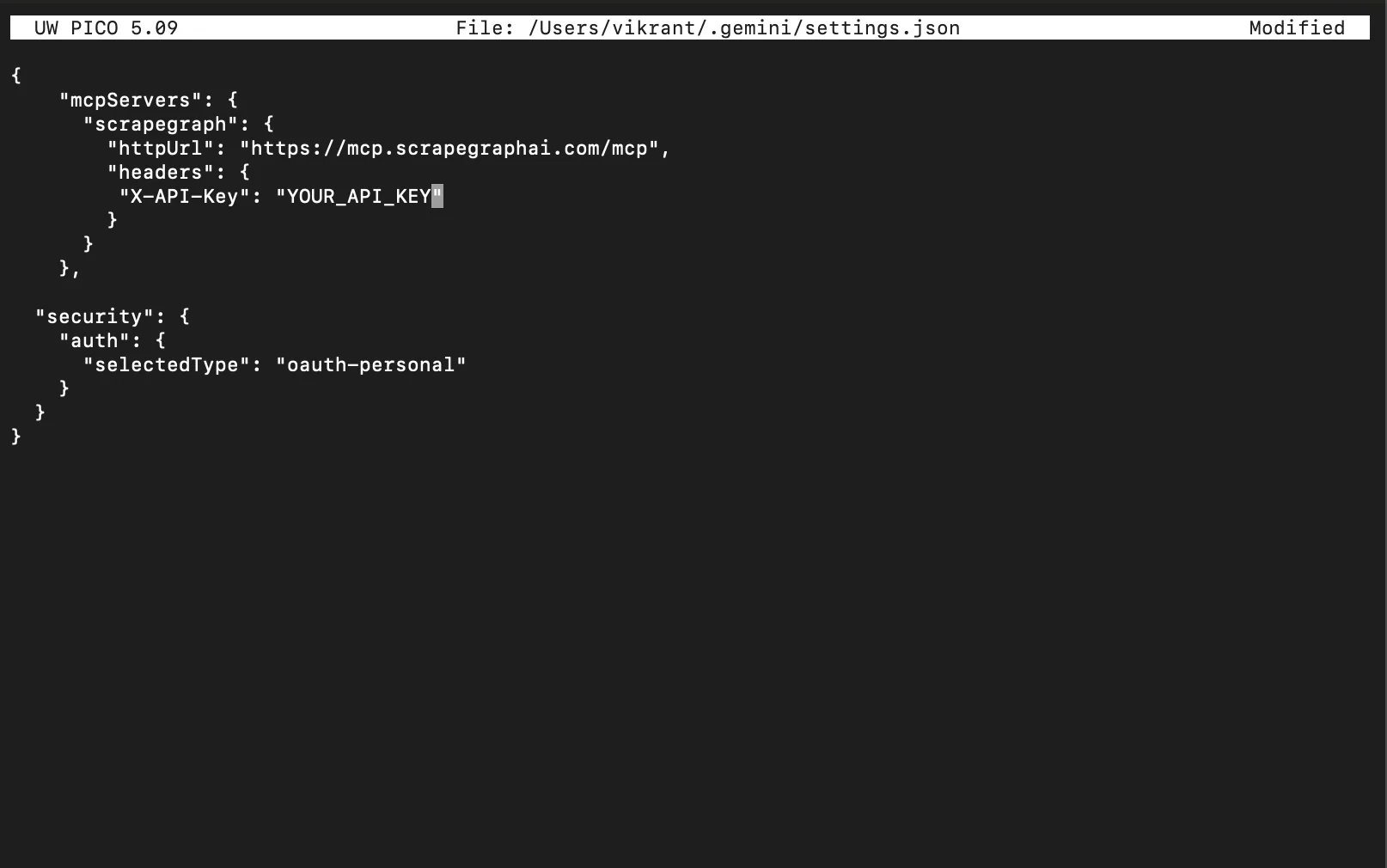
The httpUrl key tells Gemini to use Streamable HTTP transport. Use url instead if you ever need SSE, or command for stdio servers. We want HTTP here.
What Gemini can do now
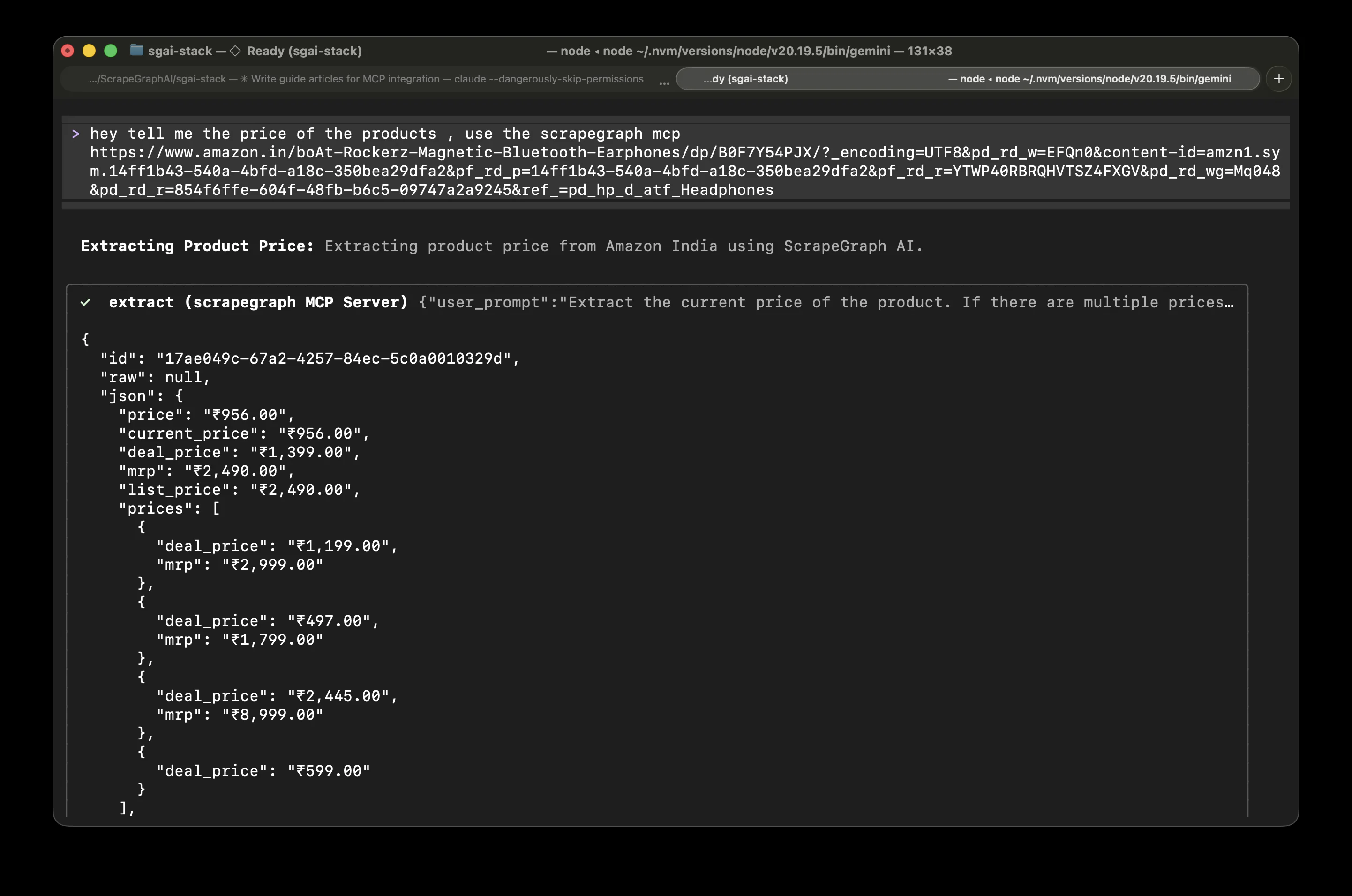
Gemini picks the right scraping tool based on your prompt. You don't name the tool, you describe the job. Point it at any URL and ask for structured output.
Troubleshooting
In rough order of how often each one bites you.
scrapegraph doesn't appear when you run /mcp. JSON syntax error, usually a missing comma or unbalanced brace. Validate your file at jsonlint.com. One bad section nukes the whole config.
"Failed to connect" or 401 on every tool call. The API key header is wrong. Double-check the X-API-Key value has no trailing spaces, no quotes around the key itself (the JSON quotes are the only ones you want), and matches exactly what's in your dashboard.
Gemini doesn't pick up config changes. Restart the CLI. Fully exit any running gemini session and start a fresh one. Settings are read at launch.
Tool calls succeed but Gemini ignores the data. Be explicit in your prompt about what to do with the scrape result. Gemini sometimes treats tool output as background context rather than the answer itself. Phrase it as "Scrape X and return Y" not "What does X say?".
HTTPS or TLS errors behind a corporate proxy. Gemini CLI uses your system's certificate store. If you're behind a TLS-inspecting proxy, you may need to set NODE_EXTRA_CA_CERTS to your corporate CA bundle before launching gemini.
Pricing and limits
Free tier covers experimentation comfortably. Production use is metered, with credits scaling by response complexity. Full breakdown lives on the pricing page, and the price calculator helps estimate a real workload before you commit. Volume deals and enterprise SLAs go through contact@scrapegraphai.com.
Related Articles
- How to Use ScrapeGraphAI MCP with OpenAI Codex: same MCP server, the Codex CLI setup using TOML config
- How to Use ScrapeGraphAI MCP with Claude Desktop: same MCP server, the Claude Desktop setup with the
mcp-remoteproxy - ScrapeGraphAI MCP Server: the bigger-picture case for MCP as the bridge between AI and live data
- Docker MCP ScrapeGraph Tutorial: running the MCP server in a container instead of pointing at our hosted endpoint
- Docker MCP ScrapeGraph Tutorial: when you want a hands-on MCP setup path