


TL;DR
Connect Claude Desktop to ScrapeGraphAI's hosted MCP server in about two minutes. One JSON block in your Claude config gives Claude live web scraping on demand.
- What you need: Claude Desktop, a ScrapeGraphAI API key, and Node.js 18+ for the
mcp-remoteproxy. - Where to edit:
claude_desktop_config.json, reachable from Settings, Developer, Edit Config. - What you get: scraping tools available in any Claude chat after a full restart.
Claude is sharp. Claude is also blind to anything that happened after its training cutoff and anything sitting behind JavaScript. Ask it about today's pricing on a competitor's site and you get a polite shrug.
This guide fixes that. You'll wire Claude Desktop to ScrapeGraphAI's hosted MCP server using our direct endpoint. No third-party installer, no SDK, no Python. One JSON block in your Claude config, one restart, and Claude can scrape the live web on demand.
Total time: about two minutes if you already have an API key. Five if you don't.
What you need
| Requirement | Where to get it |
|---|---|
| Claude Desktop (macOS, Windows, or Linux) | claude.ai/download |
| ScrapeGraphAI API key | scrapegraphai.com/dashboard |
| Node.js 18+ | nodejs.org, required for the mcp-remote proxy |
The web version of Claude does not support MCP servers the same way. This guide is Desktop-only.
Step 1: Grab your API key
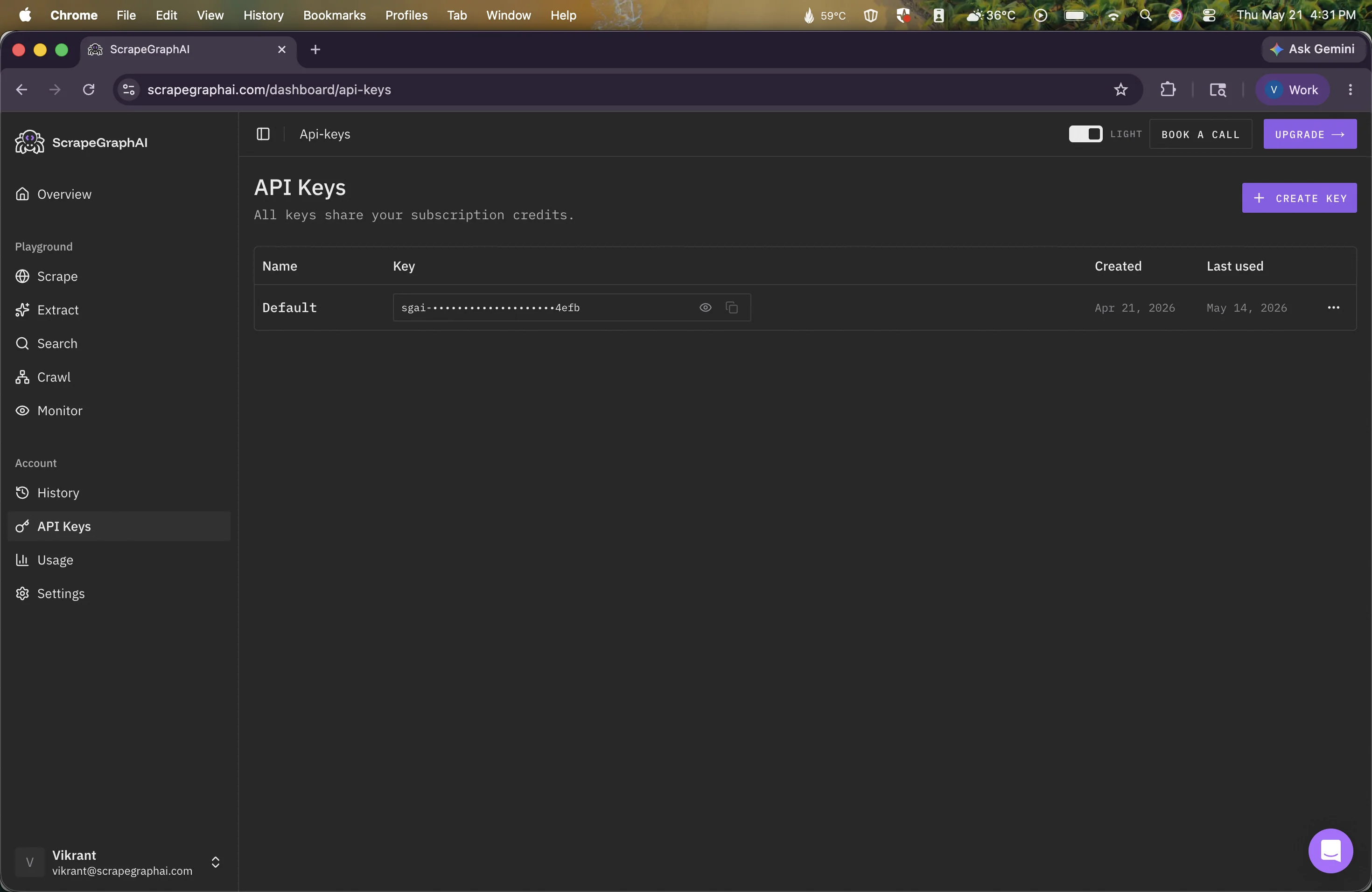
Sign in at scrapegraphai.com/dashboard. Your API key lives on the main dashboard view. Hit copy and treat it like a password. Anyone with this string can spend your credits.
New here? The free tier ships with enough credits to follow this entire guide and run a dozen scrapes after.
Step 2: Open your Claude Desktop config
Claude Desktop reads MCP servers from a single JSON file. You can either edit it through the app or open it directly.
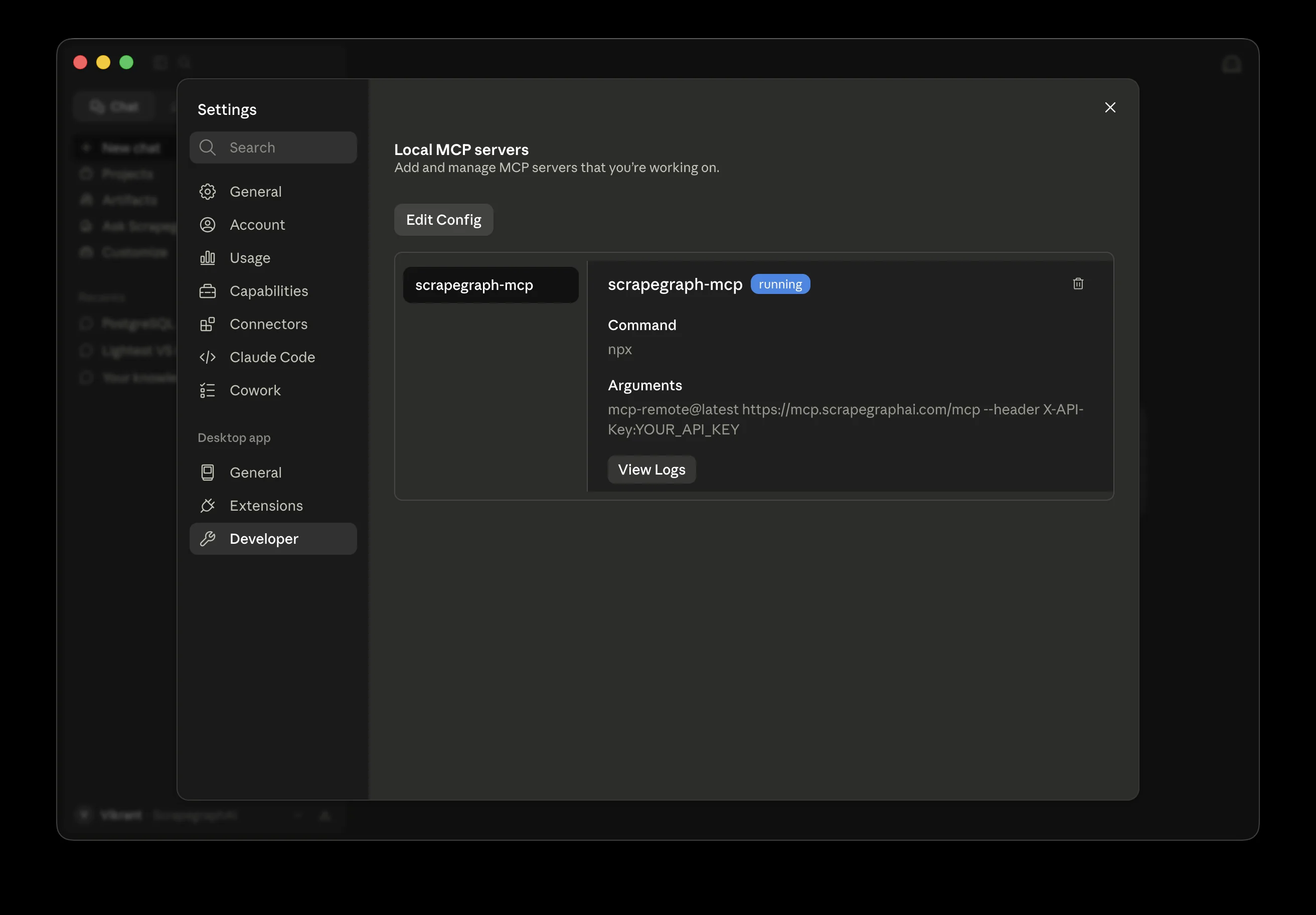
The easy way (recommended): Open Claude Desktop, go to Settings → Developer, and hit Edit Config. Your default editor opens the file in place. Once you have a server configured, this same screen shows you its status. A running badge with green dot means the connection is healthy.
The direct way: Open the file from your filesystem.
| OS | Path |
|---|---|
| macOS | ~/Library/Application Support/Claude/claude_desktop_config.json |
| Windows | %APPDATA%\Claude\claude_desktop_config.json |
| Linux | ~/.config/Claude/claude_desktop_config.json |
If the file doesn't exist yet, create it. An empty Claude install often ships without one.
Step 3: Add the ScrapeGraphAI MCP server
Paste this block into the config file. If you already have other MCP servers, add scrapegraph-mcp as a sibling inside mcpServers.
{
  "mcpServers": {
    "scrapegraph-mcp": {
      "command": "npx",
      "args": [
        "mcp-remote@latest",
        "https://mcp.scrapegraphai.com/mcp",
        "--header",
        "X-API-Key:YOUR_API_KEY"
      ]
    }
  }
}
Replace YOUR_API_KEY with the key from Step 1. Keep the colon in the header value (X-API-Key:sgai_xxx) and do not put a space after it.
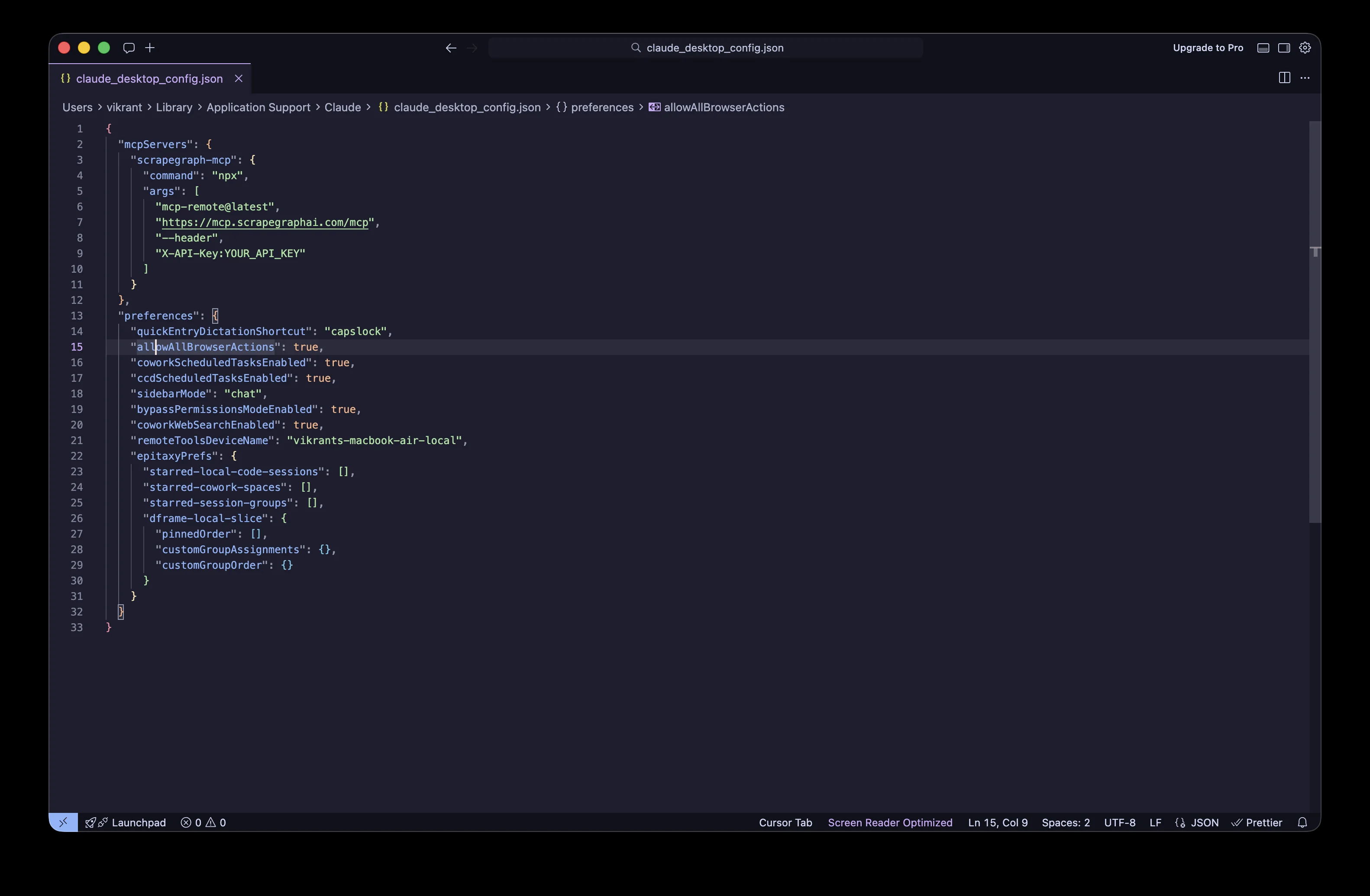
A note on what's happening here: https://mcp.scrapegraphai.com/mcp is our hosted MCP endpoint, served over HTTP. Claude Desktop currently talks to MCP servers over stdio, so mcp-remote is a tiny proxy that bridges the two. You don't need to install it ahead of time. npx fetches it on first run.
Step 4: Restart Claude and verify
Quit Claude Desktop completely. On macOS, that means Cmd+Q, not just closing the window. Reopen it.
You'll know it worked when Settings → Developer shows scrapegraph-mcp with a running badge (the same screen from Step 2). In the chat window, you'll also see a tools icon near the input. Click it and the ScrapeGraphAI tools will be listed there.
If it's not running, jump to the troubleshooting section before retyping anything.
What you can actually ask Claude now
The MCP server exposes a handful of scraping tools. Claude picks the right one based on your prompt, so you don't need to name them. Here are four prompts that show off what's possible.
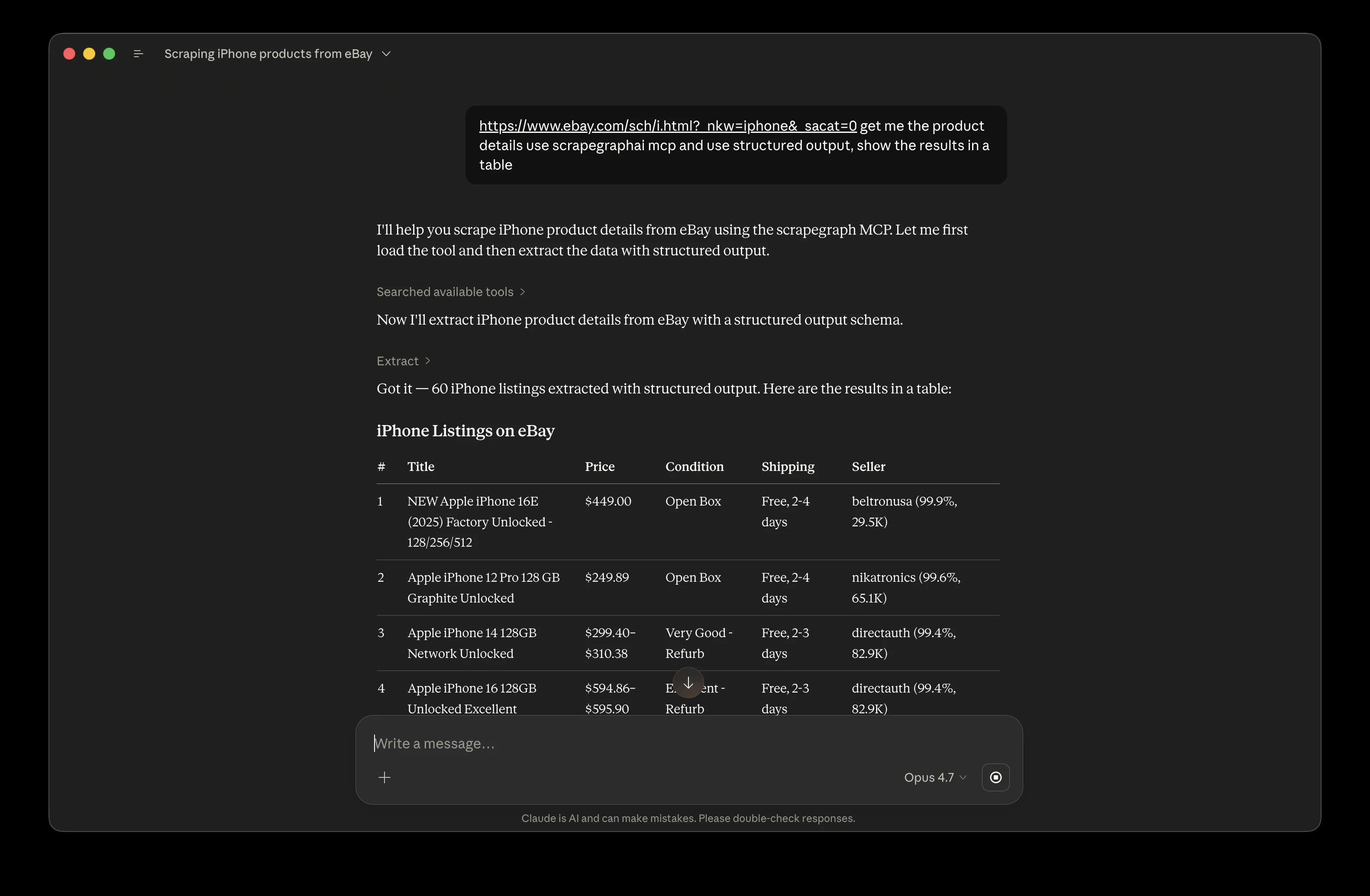
Scrape eBay listings into a structured table
https://www.ebay.com/sch/i.html?_nkw=iphone&_sacat=0
Get me the product details using scrapegraph mcp and use
structured output, show the results in a table.
Claude picks up the URL, calls the scraping tool, and pipes the result into a structured table: title, price, condition, shipping, seller. Same pattern works for competitor pricing pages, marketplaces, or any catalog you want to track.
Pull every job posting from a careers page
Go to https://example.com/careers, extract every open role with
title, location, department, and remote eligibility. Return JSON.
Works on most static or JS-rendered career pages. If the listings are paginated, follow up with "now get the next page" and Claude keeps context.
Monitor a product page
Scrape this Amazon product page and tell me the current price,
whether it's in stock, the seller, and the star rating.
Then tell me what's changed from yesterday. Assume yesterday's
price was $89.99.
Single-shot intelligence. Hook this into a daily Claude project and you have a poor man's price monitor without writing a line of code.
Turn a news site into a JSON feed
Pull the top 10 headlines from https://news.example.com.
For each: title, author, publish time, URL, and a one-sentence
summary. JSON output.
Good for daily briefings, content curation, and stuffing into downstream agents.
Troubleshooting
Things that go wrong, in order of how often they go wrong.
Tool icon doesn't appear after restart. You likely have a JSON syntax error. Run your config through a linter or paste it into jsonlint.com. A trailing comma or missing brace kills the whole file, not just one server.
"Server failed to start" in the Claude logs. Usually means node or npx aren't on the PATH that Claude Desktop sees. On macOS this happens when Node was installed via nvm. Fix it by either installing Node globally via the official installer, or hardcoding the full path in command (e.g. /Users/you/.nvm/versions/node/v20.10.0/bin/npx).
401 or "unauthorized" when Claude tries a tool. Your API key header is wrong. The format is X-API-Key:YOUR_KEY as a single argument, colon between name and value, no space. A space here is the most common foot-gun.
First call is slow. Cold starts on the remote MCP can take a few seconds. Subsequent calls are fast. If every call is slow, check your internet. mcp.scrapegraphai.com is a hosted endpoint, not a local process.
Claude says it can't scrape that site. Some sites aggressively block automation. ScrapeGraphAI handles JS rendering and most anti-bot defenses, but a small set of sites (banks, some social platforms) will still refuse. Try a different URL to confirm the server is working, then check the docs for site-specific guidance.
Pricing and limits
The free tier covers experimentation. For production use, scrape credits are metered per request and scale with response complexity. Full plan details and rate limits live on the pricing page, and the price calculator helps estimate a real workload before you commit. Enterprise and high-volume needs go through contact@scrapegraphai.com.
Related Articles
- ScrapeGraphAI MCP Server: the wider picture on what MCP unlocks for AI assistants
- Claude Scraping Beast Machine: a deeper look at what Claude can do once it has scraping tools
- Claude Web Fetch Tool: how Claude's built-in fetch differs from a full MCP scraping server
- Docker MCP ScrapeGraph Tutorial: running the MCP server in a container instead of the hosted endpoint
- Docker MCP ScrapeGraph Tutorial: when you want a hands-on MCP setup path