



TL;DR
- Send a website URL to ScrapeGraphAI's
scrapeservice withformats: [{"type": "branding"}]. - Read the colors, font families, and logo URL from
results.branding.data. - Run the notebook to export
brand.json,theme.css, and a visualbrand-kit.htmlin one ZIP. - Review the result against the source page. You can adjust colors and fonts before exporting without another API call.

The notebook takes your website URL and your own API key. Its request cell makes one branding call, documented at 25 credits. The remaining cells reuse that response to generate the files.
A customer signs up for your product and gives you their company website. You want their onboarding screen to feel familiar: a recognizable logo, a few colors, and a sensible font stack. Start with a palette, font names, and a logo the customer can approve.
The example uses ScrapeGraphAI's homepage and a saved live API response. Change the URL in the notebook to build a kit for your own site.
What you'll build
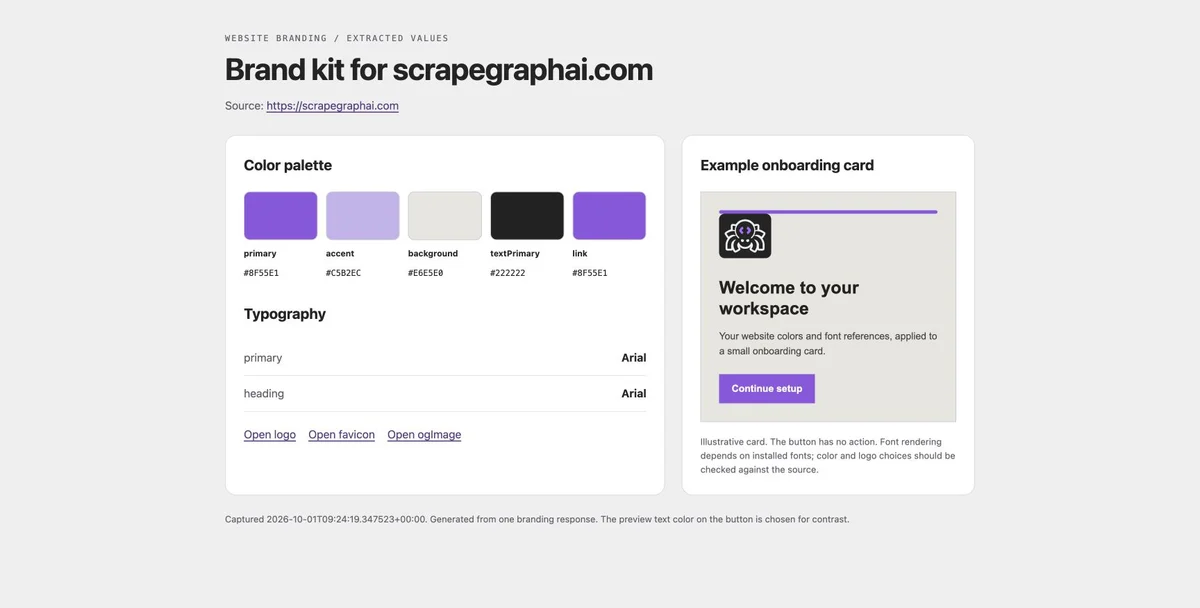
The preview above was generated from the saved API result with no color or font overrides. It includes an illustrative onboarding card so you can see how the values look together.
| File | What it contains | Where to use it |
|---|---|---|
brand.json |
Original branding fields, page metadata, source URL, capture time, and your review overrides | An onboarding record or a review workflow |
theme.css |
CSS custom properties for supported colors, font references, and border radius | A prototype or customer theme |
brand-kit.html |
Palette swatches, font names, asset links, and a sample card | A browser preview for your team |
The notebook packages all three into brand-kit.zip. Open the HTML file after extracting the ZIP. It embeds the stylesheet, so the preview stays usable when you move the file. The logo loads from its source URL.
Extract the website's branding
Get an API key from the ScrapeGraphAI dashboard. In Colab, save a copy of the notebook, edit SOURCE_URL, and run all cells. The key prompt is hidden and the key is cleared from the notebook variable after the request.
For a standalone Python request, this uses only the standard library:
import getpass
import json
import urllib.error
import urllib.request

api_key = getpass.getpass("Your ScrapeGraphAI API key: ").strip()
request = urllib.request.Request(
    "https://v2-api.scrapegraphai.com/api/scrape",
    data=json.dumps({
        "url": "https://scrapegraphai.com",
        "formats": [{"type": "branding"}],
    }).encode("utf-8"),
    headers={"SGAI-APIKEY": api_key, "Content-Type": "application/json"},
    method="POST",
)
try:
    with urllib.request.urlopen(request, timeout=180) as response:
        payload = json.load(response)
except urllib.error.HTTPError as error:
    raise RuntimeError(f"API returned HTTP {error.code}") from None
finally:
    api_key = None
    del request

brand = payload["results"]["branding"]["data"]
print(json.dumps(brand["colors"], indent=2))Branding is a format on /api/scrape. The formats array can include other outputs, but this example requests only branding. The Scrape documentation covers the full request options. For setup and examples of other services, use the API guide.
Read the actual result
The homepage test returned these colors:
{
  "primary": "#8F55E1",
  "accent": "#C5B2EC",
  "background": "#E6E5E0",
  "textPrimary": "#222222",
  "link": "#8F55E1"
}
These are extracted page colors from that run. Page themes, imagery, and layout can influence the palette, so keep the source URL alongside the values you review.
The selected logo was /logos/logo-light.svg. The returned font family was Arial for both body and headings. The kit shows those names as returned; the review step below lets you supply approved font names before applying the theme.

Use these paths when reading the response:
| Value | Path inside brand |
|---|---|
| Primary color | colors.primary |
| Body font family | typography.fontFamilies.primary |
| Heading font family | typography.fontFamilies.heading |
| Font stacks | typography.fontStacks |
| Logo URL | images.logo |
| Favicon and sharing image | images.favicon, images.ogImage |
| Per-category confidence | confidence.colors, confidence.fonts, confidence.logo |
The result also contains component styles and other fields. The JSON export preserves them, while this walkthrough uses the fields needed for a small theme.
Confidence is an object with separate scores. In this test, confidence.fonts was 0.6 and confidence.overall was 0.85. Those are diagnostic scores from the extraction pipeline. An overall score of 0.85 does not establish 85% measured accuracy.
Export CSS you can use
The notebook converts supported values to CSS custom properties. With the unedited test response, part of theme.css looks like this:
:root {
  --brand-primary: #8F55E1;
  --brand-accent: #C5B2EC;
  --brand-background: #E6E5E0;
  --brand-text-primary: #222222;
  --brand-link: #8F55E1;
  --brand-font-primary: "Arial", sans-serif;
  --brand-font-heading: "Arial", sans-serif;
}
Apply the variables to the part of your interface that needs the customer's theme:
.customer-card {
  background: var(--brand-background, #fff);
  color: var(--brand-text-primary, #242424);
  font-family: var(--brand-font-primary, sans-serif);
}

.customer-card h2 {
  font-family: var(--brand-font-heading, sans-serif);
  border-bottom: 3px solid var(--brand-primary, #655e69);
}
Font names in a stylesheet are references. Your application still needs the appropriate font files or a font provider for a matching font to render. Until then, the browser uses the fallback.
The exporter accepts hex colors, plain font names, and supported radius values. It lists values that need attention and keeps the original data in brand.json.
Review once, then apply the theme
Open the source page beside the generated kit. Compare the palette, open the logo link, and check the body and heading fonts. A site's published brand guide is a useful reference when it has one.
For our own product, the typography rules specify IBM Plex Sans for body text and headings. After that review, the notebook can apply the approved family through this setting in the export cell:
FONT_OVERRIDES = {
    "primary": "IBM Plex Sans",
    "heading": "IBM Plex Sans",
}
Likewise, set an approved primary color with COLOR_OVERRIDES = {"primary": "#AC6DFF"}. Leave both dictionaries empty to inspect the extraction as returned. The JSON retains the original fields and records overrides separately.
Rerun the export and preview cells after editing these settings. They reuse the response already in memory and do not make another API request.
The example onboarding card uses the theme variables for its surface, text, heading, and button. Its button text is chosen for contrast against the primary color; that is a preview choice made by the notebook. The button has no action. You can connect the same styles to your own onboarding component after review.
Cost and repeat runs
A branding-format request is documented at 25 credits. The notebook sends one such request. Generating JSON, CSS, HTML, and the ZIP adds no API calls. Re-running the request cell for the same URL or a different URL uses credits again.
In an onboarding flow, save the extracted record beside the approved theme. Reuse the theme until the customer requests a refresh. Use the pricing calculator to estimate the workload.
Common questions
Can I extract website colors, fonts, and a logo in the same request?
Yes. Request the branding format on scrape, then read the relevant fields from results.branding.data. The Colab notebook demonstrates that request and exports the result.
Does the ZIP include the logo and font files?
It contains JSON, CSS, and HTML. The JSON and HTML include asset URLs, and the stylesheet includes font family references. Add approved assets and font files through your application's normal asset workflow.
Can I use the result in a client onboarding flow?
Yes. Collect a public website URL, extract the branding once, and present the kit for review. Save the approved values as the customer's theme. The notebook's card demonstrates that final visual step.
Do I need another request to change the preview?
You can change overrides or preview styles and rerun the export cells using the saved response. Run extraction again when you want a fresh capture of the source website.
Build your first kit
Open the notebook in Google Colab and try a website you know well. Open the downloaded HTML beside that site. Once you have approved the palette, fonts, and logo, use theme.css in your customer-facing component.
For other inputs or outputs, read Which ScrapeGraphAI Service Should You Use?.